Import Main Accounts using Data Import framework | AX 2012 R3
Make sure that Data Import Export Framework install in you system. then after follow the following steps.
1- Go to General ledger --> Setup --> Charts of Accounts--> Chart of accounts.
2- Create New Chart of Accounts (chart of account, Description) then close the form.

3- Go to General ledger --> Setup --> Ledger.

4- Assign the new chart of account to the ledger(from step 2),select the fiscal calendar and the Accounting Currency then close the form.

4- Go to Data import export framework --> Setup --> Data import / export framework Parameters.

5- Click browse to select shared working directory then click Validate button then close the form.

6- Go to Data import export framework --> Setup --> Source Data format, Create new source name and make sure to chose File in the Type then Change the Column delimiter if needed.

7- Go to Data import export framework --> Common --> Processing Group, Create New Group then Click the Entities Button.

8- in the entities form select the main Account Entity, CSV in the Sources data format, then Click the generate source file button.

9- in the wizard make sure to select the following fields:
Chartofaccounts (Chart of account code: from step 2)
MainAccountId (Account Code)
Name (Account Description)
Type (Account Type )
then click Generate sample file.

10-Save the file in the shared folder you specified in step 5.

11-Open the file using MS Excel, fill the data then save the file.

12-Go back to the processing group --> entities---> Select the Sameple file path then click the generate source mapping button.

13- if the mapping done successfully Click the Preview source file button to preview the data then close the form.

14- in the processing group select the group name then click the Get staging data button to copy the file data to staging table.

15-Click OK to create job.

16-Click Run in the staging data execution form.
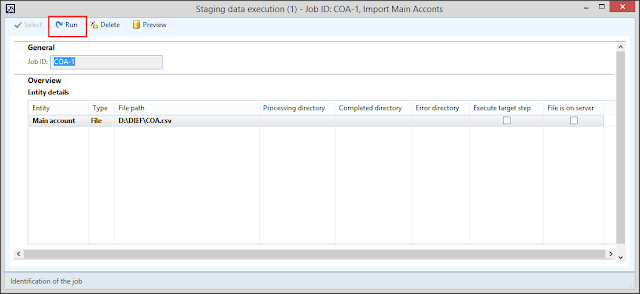
17-Click OK.

18-The records will be inserted in the staging.

19-In the processing group select the group name then click Copy Data to target button.

20-Select the Job ID that we created in step 15 then click OK.

21- Click Run to import data.

22-Click OK.

23-The data will be written to target.

24-Go to the main account form you will found that the accounts was imported successfully.

2- Create New Chart of Accounts (chart of account, Description) then close the form.

3- Go to General ledger --> Setup --> Ledger.

4- Assign the new chart of account to the ledger(from step 2),select the fiscal calendar and the Accounting Currency then close the form.

4- Go to Data import export framework --> Setup --> Data import / export framework Parameters.

5- Click browse to select shared working directory then click Validate button then close the form.

6- Go to Data import export framework --> Setup --> Source Data format, Create new source name and make sure to chose File in the Type then Change the Column delimiter if needed.

7- Go to Data import export framework --> Common --> Processing Group, Create New Group then Click the Entities Button.

8- in the entities form select the main Account Entity, CSV in the Sources data format, then Click the generate source file button.

9- in the wizard make sure to select the following fields:
Chartofaccounts (Chart of account code: from step 2)
MainAccountId (Account Code)
Name (Account Description)
Type (Account Type )
then click Generate sample file.

10-Save the file in the shared folder you specified in step 5.

11-Open the file using MS Excel, fill the data then save the file.

12-Go back to the processing group --> entities---> Select the Sameple file path then click the generate source mapping button.

13- if the mapping done successfully Click the Preview source file button to preview the data then close the form.

14- in the processing group select the group name then click the Get staging data button to copy the file data to staging table.

15-Click OK to create job.

16-Click Run in the staging data execution form.

17-Click OK.

18-The records will be inserted in the staging.

19-In the processing group select the group name then click Copy Data to target button.

20-Select the Job ID that we created in step 15 then click OK.

21- Click Run to import data.

22-Click OK.

23-The data will be written to target.

24-Go to the main account form you will found that the accounts was imported successfully.

Note : If you face any issue during th process just chck the error log.
Comments
Post a Comment