The Microsoft Dynamics AX 2012 Data Import/Export Framework helps you import and export data in AX which include master data, open stock, and balances.
- For Microsoft Dynamics AX 2012 R3, Data Import/Export Framework is included in the release.
- For Microsoft Dynamics AX 2012 R2, Data Import/Export Framework is available in cumulative update 7 for Microsoft Dynamics AX 2012 R2.
- For AX 2012 or Microsoft Dynamics AX 2012 Feature Pack, Data Import/Export Framework is available from Information Source-download.
Step 1: Define Parameters
Navigation: Data import export framework > Setup > Data import/export framework parameters
- Create a folder in your directory
- Browse the location for the folder which is created
- Validate the directory, it will show the Green check box

Step 2: Pre-defined Entities in AX
AX has some of the pre-defined entities inbuilt in the application of which we will use one of them.
Navigation: Data import export framework > Setup > Target Entities

Step 3: Create Source Data formats
Navigation: Data import export framework > Setup > Source Data formats
Determine the source of the data to export or import, and create a source data format for the data. For export, the source is AX. For import, you can use any of the following sources:
- AX– Import data from another Microsoft Dynamics AX instance.
- ODBC– Import data from another database, such as Microsoft SQL Server or Microsoft Access.
- File– Import data from a fixed-width or delimited text file, XML file, or Microsoft Excel file.
- Source as “Comma”
- Enter a description for it as “Comma separated file”
- Type – select the type as “File”
- In the General area on the right side of the form select
- Column delimiter as “comma (,)”

Once the above setups are done we will now start creating target entities for which we want to upload the data in AX
Step 4: Create Processing group
Navigation: Data import export framework > Common > Processing group
- Click on New on to create a new group
- Enter group name as Product
- Enter a suitable description
- Then click on Entities to get the required fields and move on to next step

Step 5: Select entities for processing
Once you click on Entities in the above step it will open a new form wherein we need to create
- Click on New button
- Select the Entity as “Product Master” from the drop down
- Select the Source data format as “comma” create in Step 3
- Then click on the Generate source file to select the required fields
- With this entity we can upload Product as well as Product Master.

Step 6: Generate Source file
Once you click on Generate source file a new wizard will be generated to create a template
- Click on Next

Step 7: Select the required fields to upload the Product and Product master
- Select the Field name which are required to upload
- By default some of the mandatory fields are selected
- Apart from them you can select some other fields as shown in the below image.
- Then click on Generate Sample File to generate a notepad for the selected fields with comma delimited
- Click on Finish button

Step 8: Copy the data from notepad and paste it in excel
- Place the cell in the first column
- Click on the menu – Data
- Then click on Text to columns
- Click on Next
- Select “Comma” in the delimiters and click on Finish button

Step 9: Enter the data in respective columns.
- You can enter multiple records and make sure Product dimension groups are already created in AX in advance and use the same values in this sheet.
- Once after completion of the data
- Save the file as “CSV (Comma delimited)” in a folder
- For Product select the product sub type as “Product” and product type as “Service” for service items.

- For Product master select the product sub type as “Product master” and product type as “Item” for item master.
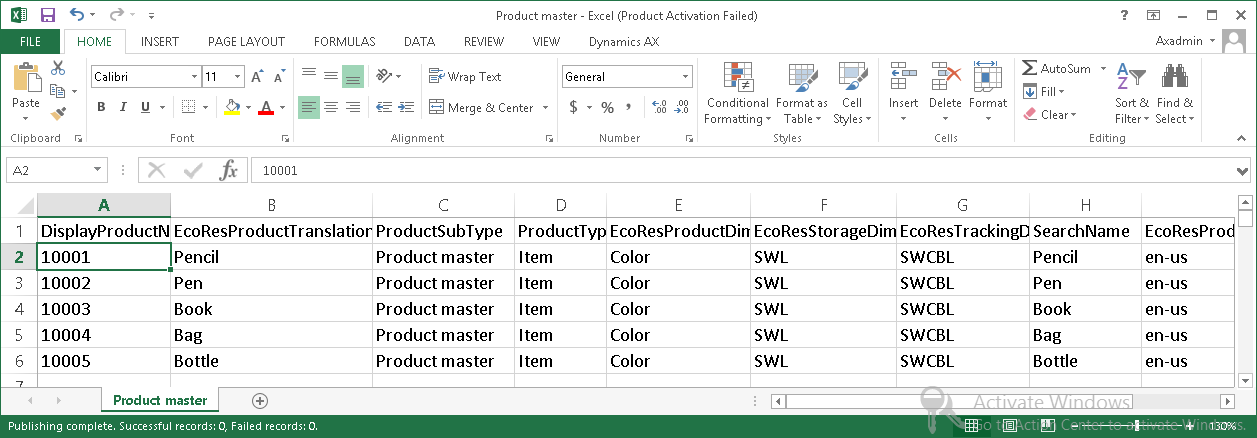
Step 10: Upload the excel file in the Processing group
Navigation: Data import export framework > Common > Processing group – Entities button
- Browse the file which is created in the above Step 9
- Click on Generate source mapping (an info log will be shown as “Product entity mapping done successfully”)
- The validate the file (an info log will be shown as “Product” entity is validated for data import/export”)
- You can get a preview of the data which is to be uploaded

Step 12: Get staging data
Navigation: Data import export framework > Common > Processing group
- Select the Processing group – Product
- Then click on “Get staging data”

Step 13: Staging job
- A Staging job form will be opened
- Job ID
- Enter the description
- Then click on OK

Step 14: Run the staging data
- You can even get the preview of the data at the lower pane of the form
- Click on Run button to execute the staging

- We can even setup Batch processing by selecting the Batch check box and setup Recurrence
- To execute the job immediately, Click on OK

- An info log is generate for the same showing the number of records inserted

Step 15: Copy data to target
Navigation: Data import export framework > Common > Processing group
- Select the Entity – Product
- Click on Copy data to target

Step 16: Select a Job Id
- Select the Job ID which is created in the above Step 13
- Click on OK

Step 17: Run the Job
- Select the Entity and Run the Job

- We can even setup Batch processing by selecting the Batch check box and setup Recurrence
- To execute the job immediately, Click on OK

- An info log is generate for the same showing the number of records inserted
Step 18: View the records uploaded in AX
Navigation: Product information management > Common > Products > Products
- 4 records are created
- We can edit and enter additional information if required

Note: The same process can be used to upload the Product Master by creating the data in the same file or in a different file and repeat from step 10.
Comments
Post a Comment